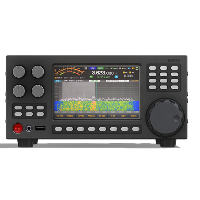





EAX control user guide
ERMAK-TT RX and TX audio on your computer
EAX carries audio over your home network, no wires. Work FT8 QSOs and listen to the bands right from your shack — no audio cables and no USB sound card.
What do you want to do?
Work FT8, FT4 and other digital modes
JTDX, WSJT-X, fldigi: decodes on screen, transmit from the program.
Listen to the bands on your computer
RX1 and RX2 in headphones or shack speakers.
The rig stays at your home QTH, you are at the cottage or on holiday. Port forwarding or VPN.
Fedora and Ubuntu. About 15 minutes.
Windows 10 and 11. About 15 minutes.
Find your case — fixed in a couple of minutes.
How the audio flows

The transceiver sends RX audio to EAX. EAX passes it to a virtual sound card — a “cable” inside the computer. The digital mode program takes the audio from that card. On transmit, the audio goes back through the second virtual card.
Download
Latest version — 1.5.2.
Ubuntu 20.04 and 22.04, Fedora 38–44 and the change log — on the all EAX versions page.
Quick start
You need: an ERMAK-TT transceiver and a computer on the same router, and 15 minutes.
Prepare the transceiver
Connect the transceiver to the router by cable or Wi-Fi. Enable the EAX interface in the remote connection settings. For transmit, select the EAX source in the TX settings window.
Connect to the transceiver
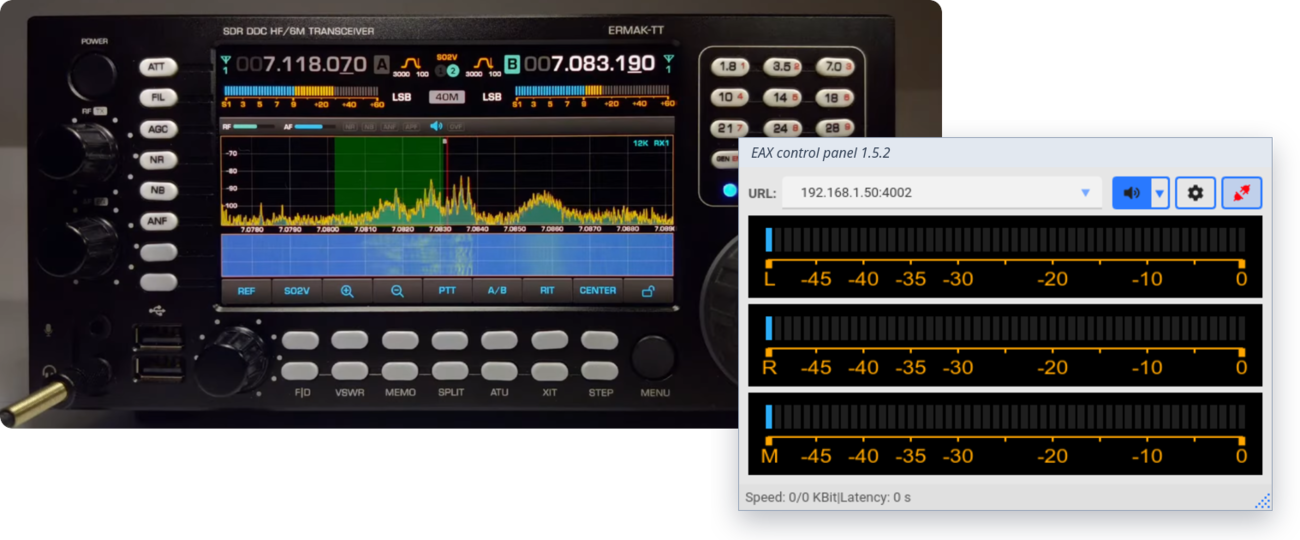
Type the transceiver address and port 4002 in the URL field, for example 192.168.1.50:4002. Click the connect button  .
Check: in the EAX status line Speed is above zero, the L and R meters move.
Set up your digital mode program
Select the virtual sound cards and the CAT server in JTDX or WSJT-X: JTDX and WSJT-X setup.
Check: JTDX shows decodes, the Tune button keys the transmitter. You are ready for your first QSO.
Connected, but no audio? Most often the wrong computer IP address is selected in EAX settings. Open Connected, but no audio.